

socketchat to open the chat screen. It asks for your passphrase, then shows your rooms. It works in any terminal window of 80 by 24 characters or larger, and over SSH.
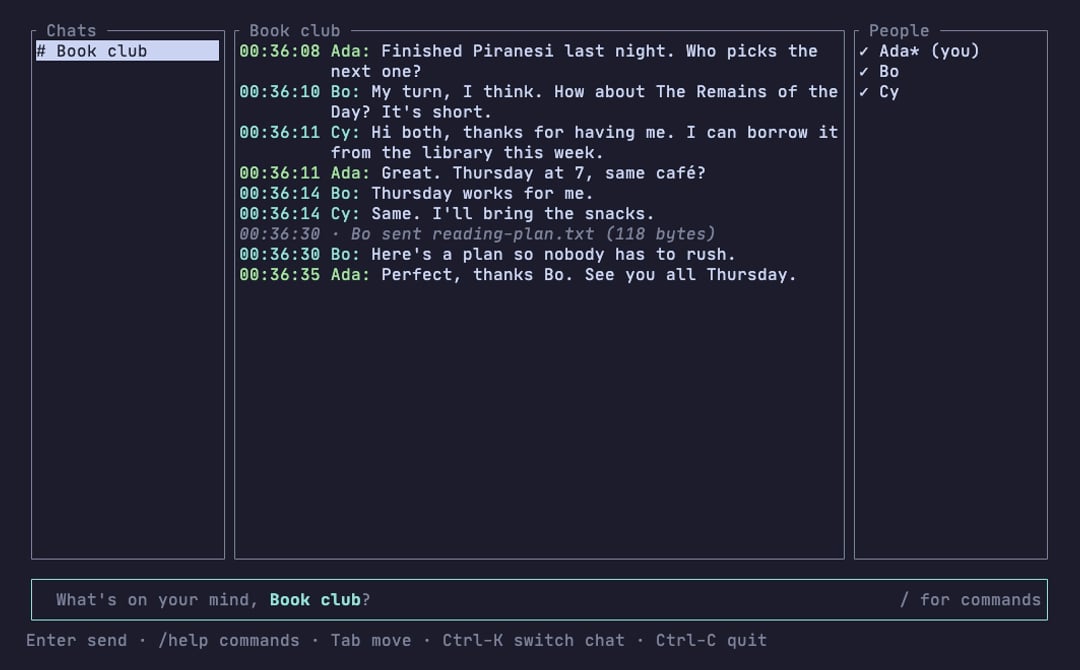
This picture shows the classic colors. Socketchat 0.5.1 opens in the phosphor colors by default; see Colors.
Panels
The bottom line shows the keys that work right now, and the Socketchat version when the window is wide enough.
The room’s server
Each room lives on one server, and the Messages panel title names it after the room’s name. The server shows as its host, with the port added when it is not 7444. In a narrow window the title drops the server and keeps the room’s name. When the app has lost its connection, the title ends in “offline”. New rooms from/new go on the open room’s server, or on the newest server you joined when no room is open. /servers lists every server you use and whether each is connected, and /details names the open room’s server. See Servers.
Keys
Commands and Tab completion
Type/ to start a command, and /help to see them all. Tab completes a command as you type it, and Tab or Shift-Tab steps through the matches when there are several. Matching commands show on the bottom line, and a grey suggestion after the cursor shows what Tab would add; Right arrow accepts it. /switch and Tab complete a room’s name, and /theme and Tab cycle the color names.
See Commands for the full list.
Pasting
A paste goes into the message box as text, with line breaks shown as↵. Nothing is sent or run until you press Enter, so a pasted command never runs by itself. This needs a terminal that marks pastes (bracketed paste), which most do.
Mouse
The mouse is on by default:- Click a room in Chats to open it, and click a panel to move to it.
- Scroll the messages,
/help,/invitesand/detailswith the wheel. - Boxes have buttons along their bottom edge, such as Yes and No. A click answers only once the box is on screen.
/mouse on turns it back on, and /mouse says which it is. Socketchat keeps the choice in your profile.
Colors
Socketchat has two color themes:- phosphor, the default: green on a near-black screen.
- classic: your terminal’s own background and colors.
/theme on its own shows the colors in use. Socketchat saves the choice on your computer. To pick a theme for one run only, set SOCKETCHAT_THEME:
COLORTERM set to truecolor or 24bit), and close 256-color matches otherwise.