

Make a room
In the chat screen:socketchat new "Book club" does the same.
Invite someone
1
Make an invite link
Open the room and type:A box shows the link and, when the window is large enough, a QR code. Socketchat also copies an invite message to your clipboard as the box opens:A line under the link says whether the copy worked. Press C to copy it again.
2
Send it to one person
Paste the message into any channel you trust: a text, an email, a note handed over in person. Each link works once and expires after 24 hours, unless the server’s operator set another time. Anyone who has the link can ask to join, so send it to one person only.
3
Your friend joins
Your friend installs Socketchat from socketchat.org and runs the line from the message:The first time, it asks for a display name and a passphrase. The quotes keep the link whole in every shell.
4
Your app lets them in
The join request waits on the server until an app in the room lets them in. That is your app, or any admin’s, while it is running: the chat screen open, or a
socketchat sync from a script. Your friend sees “Waiting for (your name) to let you in.” until then.Once they are in, your friend’s app checks that the link came from you and marks you verified. Your app does the same for them.Join with a link
To join a room or a server someone invited you to, use their link:socketchat join also accepts the web form of a link, https://socketchat.org/join#socketchat://.... Inside the chat screen, /join <link> does the same.
There are two kinds of link:
- A server invite, from
socketchat server inviteon the server. It gives you an account on that server, so you can start rooms. Your app says “You are on (server). Start a group with: socketchat new (name)”. - A room invite, from
/invite. It brings you into one room. It usually gives you an account on the server too, so you can start rooms and direct messages of your own.
Direct messages
A direct message is a room for two people./dm <name>starts one with someone in the open room./invite --dmmakes a link that opens a new two-person chat with whoever uses it.
Verify someone
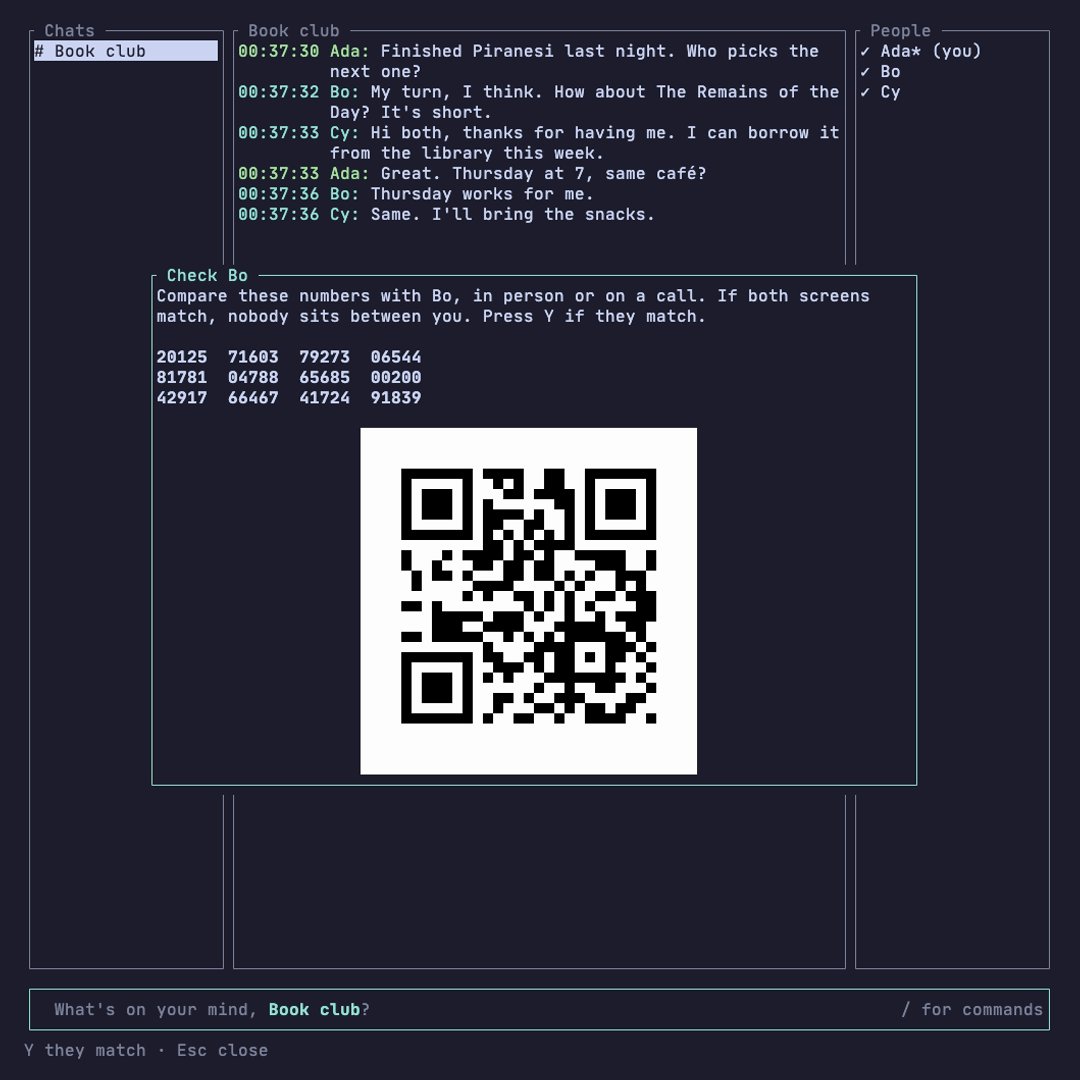
The verified mark (✓) means your app checked who that person is. It comes from an invite link, or from comparing safety numbers. A safety number is a 60-digit number built from two people’s keys: if both screens show the same number, nobody sits between you.
Your invite links
/inviteslists the invite links you made that still work./cancel <number>stops the link at that number in the list.
socketchat invites and socketchat invites --cancel <number>.
Admins
Admins look after a room. The person who made it is the first.
A room closes once its admins agree: every admin when it has up to three, more than half when it has more. A room with one admin closes at once. A request to close stays open for seven days.
Names
/name <new>changes the name others see for you./rename <name> <new>renames someone on your own screen only.
Leave a room
/leave takes you out of the room and deletes its history from this computer. If you have unread messages, Socketchat shows them first and asks you to type /leave again. Other members keep their own copies.
Other room commands:
/detailsshows the room’s admins, how many people are in it and when it was made./mutehides the room’s new-message count on your computer, and/unmuteshows it again. Nobody else sees that you muted it./cleardeletes the room’s messages and files list from this computer while you stay in it.